 Skip to main content

When your Xerox VersaLink C625 flashes a warning that the waste toner cartridge is full, it’s not just a suggestion; it’s a demand. Ignoring it can lead to print quality issues, halted jobs, and frustrated coworkers standing around the printer with arms crossed. If you’re reading this, chances are your machine’s had enough, and you're wondering: What even is a waste cartridge, and how do I replace it without making a mess?
That’s exactly what this guide is here to solve.
We'll walk you step-by-step through how to replace the waste toner cartridge like a pro, even if you’ve never opened a printer panel before. You'll be guided by Matthew, a seasoned printer technician from Strategic Technology Partners of Texas (STPT). Our company has serviced thousands of printers just like yours. Our experts don’t guess, they know exactly what they’re doing because they’ve fixed this problem more times than you can count.
By the time you finish this article, you'll:
- Understand why replacing the waste cartridge is necessary and when it needs to be done
- Learn exactly how to do it with clear, technician-approved steps
- Avoid common mistakes that lead to toner spills or installation errors
- Get peace of mind that your printer will be back to peak performance, fast
Let’s get into it.
What Is a Waste Cartridge, and Why Should You Care?
Every time your Xerox VersaLink C625 prints, it uses toner to form images and text. But not all that toner ends up on the paper. Some excess toner, called waste toner, gets collected in a special container known as the waste toner cartridge.
Over time, that cartridge fills up. Once full, the printer won’t keep running until it’s replaced. It's like your printer saying, “I’ve got nowhere else to put this junk, fix it before we continue.” If you ignore it or try to keep printing, you risk:
- Streaks and smudges on your prints
- Messy toner buildup inside the printer
- Long-term damage to internal components
- Total printing shutdown
Changing the waste cartridge is essential. It ensures clean, reliable prints without many interruptions.
When Should You Replace the Waste Cartridge?
The printer will tell you. You’ll see a warning or error message on the display panel that reads something like:
“Replace Waste Toner Cartridge”
You’ll also know it’s time if:
- Print jobs stop abruptly with no paper jam
- Print quality suddenly degrades (think random streaks or toner marks)
- The machine starts beeping or flashing an alert you haven’t seen before
When any of that happens, don’t ignore it. It’s time to swap it out.
How to Replace the Waste Cartridge on the Xerox VersaLink C625
Here’s how Matthew does it and how you can, too.
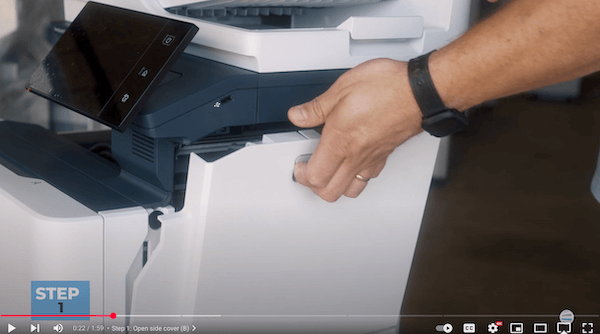
Step 1: Open the Side Cover (B)
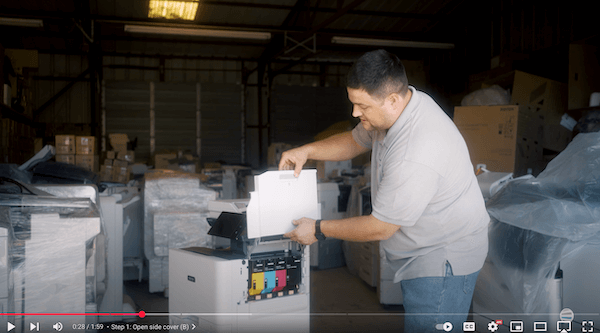
Look at the right side of the printer. Lift the gray handle to swing open Cover B.
Then swing the cover upwards. It’s spring-loaded, so it’ll stay up on its own once lifted.
Step 2: Remove the Waste Toner Cartridge
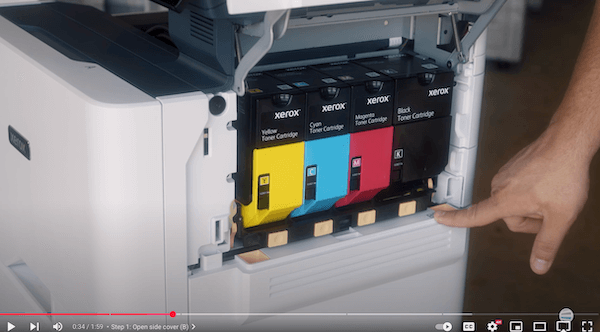
Locate the B1 panel near the bottom (located under the toner cartridges). You’ll see two orange holes at the top of this panel.
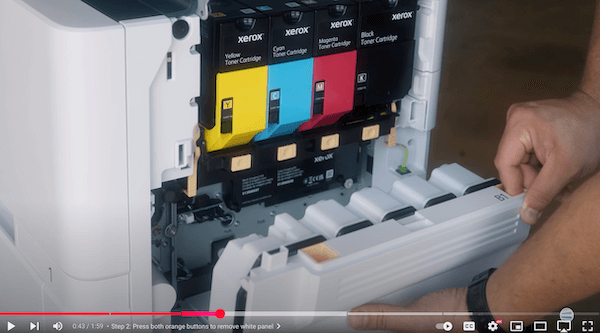
Place both thumbs inside simultaneously and pull the white waste cartridge straight out. When removing the waste cartridge, be careful. If you tilt it, toner may spill.
Step 3: Install the New Waste Cartridge
Align the new cartridge precisely where the old one was removed. Insert it straight in without tilting or angling. Give it a slight wiggle to ensure it seats properly. Then, press with your thumbs until it clicks securely into place.
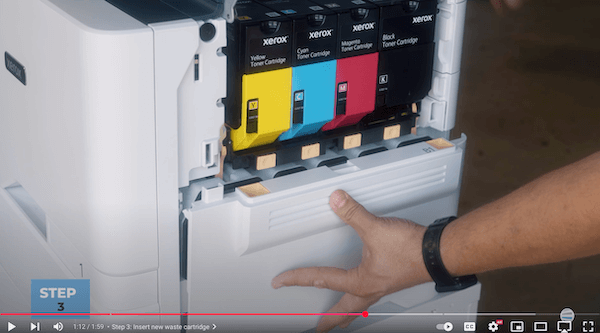
Check: The cartridge should be flush with the surface, with no gaps.
Step 4: Close the Cover
Swing the B cover back down and press the bottom section to snap it shut. Lastly, push the top until you hear it click.
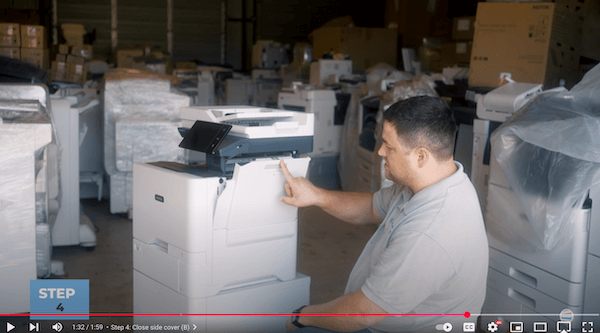
Done. That’s it. No tools, no special skills, no drama.
Why This Matters for Your Business or Organization
Leaving a full waste cartridge sitting around can choke your productivity. If just one printer stops working, it can affect your whole team, push back important projects, and add extra stress. For businesses that rely on printing things like invoices, marketing materials, or internal reports, skipping this little maintenance task can lead to bigger problems down the line.
Replacing the waste cartridge ensures:
- Cleaner print quality
- Fewer service calls
- Longer printer lifespan
- Consistent productivity
This simple fix prevents downtime that costs your business time and money. It’s routine maintenance, but it’s mission-critical.
Don’t Wait Until It’s Too Late
It’s easy to forget about printer maintenance until something breaks. But by staying ahead, like replacing the waste toner cartridge when prompted, you avoid bigger problems down the road. Clean prints. Reliable machines. Happy teams.
Make it a habit, not an emergency.
Want More Printer Tips?
If you found this walkthrough helpful, there’s a whole lot more where that came from. Head over to The Printing Workshop on YouTube and subscribe. You’ll get access to:
- More printer repair and maintenance tutorials
- Expert tips from certified technicians
- Clear, no-fluff guides to keep your machines in top shape
Subscribe now to The Printing Workshop and take the mystery out of printer maintenance for good.
Need expert help? Contact us, and our printer experts can help you.
