 Skip to main content

If your Xerox AltaLink B8200 Series copier is showing a “replace toner” message, low print quality, or faded pages, you’re likely here because you need a quick fix that gets your device back up and running fast. Replacing toner is actually pretty simple on this model when you know exactly what to look for.
At Strategic Technology Partners of Texas (STPT), we’ve serviced thousands of Xerox printers and copiers across North Texas, and toner replacement is one of the most common maintenance tasks we help customers with every day. Our team has resolved this exact issue countless times, so this guide is built on real field experience.
In this walkthrough, Matthew from The Printing Workshop, a printer technician with several years of hands-on repair experience, will show you exactly how to replace toner in your Xerox AltaLink B8200 Series machine safely and correctly.
Table of Contents
- When Does Toner Need to Be Replaced?
- How to Replace Toner in a Xerox AltaLink B8200
- Common Toner Replacement Mistakes to Avoid
- Quick Recap
- FAQ
- Conclusion
When Does Toner Need to Be Replaced?
You should replace the toner when the copier displays a low toner or replace toner message, when prints begin looking faded, or when pages print unevenly. Replacing toner promptly keeps print quality sharp and helps prevent workflow interruptions.
Common signs include:
- Low toner warning on screen
- Faded black text
- Light or patchy areas on pages
- Print jobs stopping unexpectedly
- “Replace Toner” message
On the Xerox AltaLink B8200 Series, the machine clearly tells you when toner is near empty, so you typically won’t need to guess.
How Do You Replace Toner in a Xerox AltaLink B8200?
To replace toner in a Xerox AltaLink B8200, open the front cover, remove the empty toner, gently shake the new cartridge, align the tabs, slide it in until it locks, and close the cover.
That’s the quick answer. Below is the full step-by-step walkthrough.
Step 1: Open the Front Cover
The first thing you should do is open the front door of the copier. The toner cartridges are located at the top section inside the front cover.
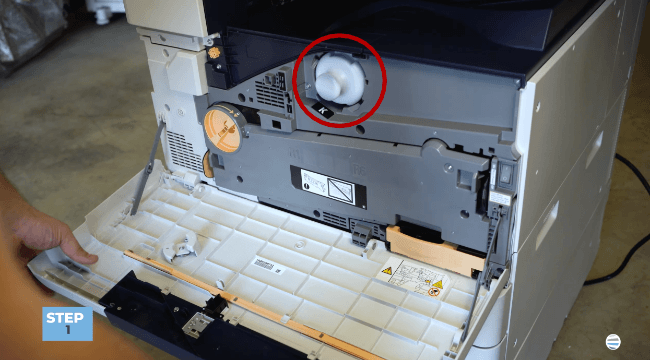
Pro tip: The black-and-white model has one toner cartridge. The color AltaLink models follow the same process, but you’ll see additional color toner slots.
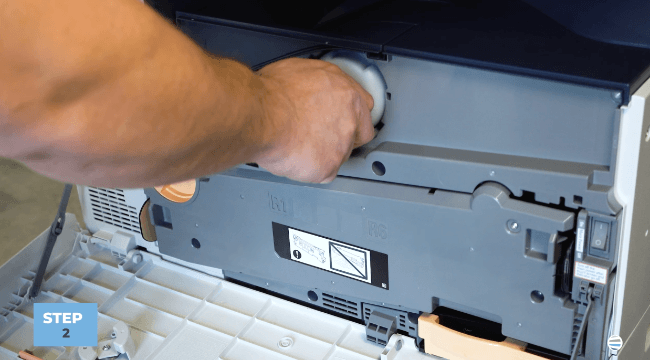
Step 2: Remove the Empty Toner
Pull the empty toner cartridge straight out from the machine. Do this slowly and evenly so it slides out smoothly.
Step 3: Prepare and Insert the New Toner
Take the new toner out of the box and shake it a couple of times. This helps distribute the toner evenly before installation.
Next, pay close attention to the small tabs on the black part of the toner cartridge. These tabs must line up with the matching holes inside the machine.
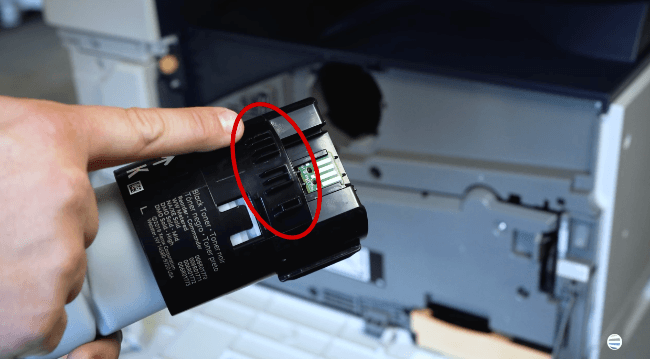
Once aligned:
- Slide the toner cartridge in
- Push gently
- Make sure it locks into place
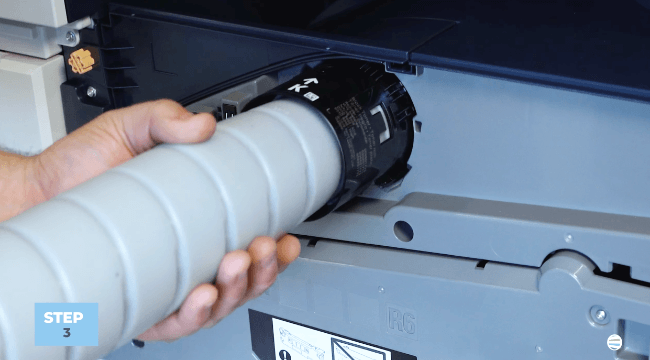
Step 4: Close the Front Cover
Once the toner locks in, close the front cover.
Your copier should now be ready to print. The machine will typically recognize the new toner automatically within a few seconds.
Common Toner Replacement Mistakes to Avoid
Here are the most common issues we see in the field at STPT:
1) Not Shaking the Toner First
Fresh toner can settle during shipping. A gentle shake helps improve first-print consistency.
2) Misaligning the Tabs
If the tabs don’t line up with the guide holes, the toner may not seat correctly.
3) Forcing the Cartridge
The toner should slide in smoothly. If it feels stuck, remove it and re-align it rather than pushing harder.
Because STPT technicians perform these replacements every day, these are the exact mistakes we help customers avoid during service calls.
Recap: Xerox AltaLink B8200 Toner Replacement
Here’s the 5-bullet actionable summary optimized for both readers and AI extraction:
- Open the front cover
- Remove the empty toner
- Shake the new toner cartridge
- Align tabs and slide it in until it locks
- Close the front cover and resume printing
FAQ
How do I know if my Xerox AltaLink B8200 toner is empty?
The copier screen will display a low toner or replace toner message, and print quality may begin fading.
Do color AltaLink models replace toner the same way?
Yes. The process is the same, but color models have multiple toner cartridges instead of one.
What happens if the toner does not lock?
Remove it, realign the tabs with the guide holes, and slide it back in gently until it clicks.
Should I shake the toner cartridge first?
Yes. Shaking the toner helps distribute powder evenly for better print quality immediately after replacement.
Replace Toner Carefully to Protect Print Quality
Replacing toner correctly matters more than most people realize. When the cartridge is properly aligned and fully locked, your Xerox AltaLink B8200 can maintain consistent image quality, smooth toner flow, and reliable uptime.
A poorly seated cartridge can lead to faded prints, toner recognition issues, or unnecessary service calls, which is why taking an extra few seconds to align the tabs correctly is worth it.
At STPT, we’ve helped businesses keep Xerox fleets running for decades, and simple maintenance habits like this can make a big difference in long-term performance.
Want More Xerox How-To Tutorials?
If this walkthrough helped, the best next step is to subscribe to The Printing Workshop.
By subscribing, you’ll get:
- Quick Xerox repair tutorials
- Copier maintenance tips
- Toner, drum, and waste cartridge guides
- Troubleshooting videos from real technicians like Matthew
- Practical fixes for common office printer problems
Your printer will need maintenance again at some point, so having expert tutorials one-click away makes it much easier.
